VAMPIR PC download: Official Install Guide
Start your VAMPIR PC download from the official page, install through Netmarble Launcher, check PC requirements, and set up optional Remote Play on mobile.
Last reviewed:
Official game media
VAMPIR imagery from the official game website and publisher resources.
Visit official websiteFor a VAMPIR PC download, open the official PC page, select "PC Version Download," and install the game through the Netmarble Launcher. Before starting the launcher and game installation, prepare at least 30 GB of free storage and compare your computer with Netmarble's published PC requirements. Once the game is installed, log in or sign up through the launcher, then use its "Play" button to enter VAMPIR.
Where to get the official VAMPIR PC download
The official VAMPIR PC download page provides the "PC Version Download" entry and explains the Netmarble Launcher installation route. VAMPIR's official homepage announces that the game has officially launched and invites players to download it. Use that current launch announcement when deciding whether an older pre-download guide still describes the game's availability accurately. The same PC page also explains Netmarble Connect, the optional mobile service for remotely accessing a PC game after setting up the Netmarble Launcher.
Check storage and PC requirements before installing
Netmarble's installation guidance describes approximately 30 GB of free space for the initial launcher and game installation, and also asks for at least 30 GB before installing. Treat that figure as the space to have available before setup, rather than an exact measurement of the installed game's size. For the processor, Netmarble lists Intel Core i5-10400 or AMD Ryzen 5 3600 under minimum requirements.
The recommended processor choices are Intel Core i7-11700K or AMD Ryzen 7 5700X, while both requirement columns list 16GB of RAM. Both columns also specify Windows10(64bit) for the operating system and Version 12 for DirectX. These are the requirements published in Netmarble's PC guide, so use that guide's minimum and recommended columns when comparing your system. The Windows10(64bit) operating system entry should not be read as confirmation that other operating systems are supported.
The minimum graphics options are GeForce GTX 1060, Radeon RX 580, or Arc A580. For recommended graphics, the same guide lists GeForce RTX 2060, Radeon RX 5700XT, or Arc A750. Compare your graphics card with the appropriate column alongside the processor and memory requirements, keeping the minimum and recommended specifications distinct.
Install VAMPIR and sign in through the launcher
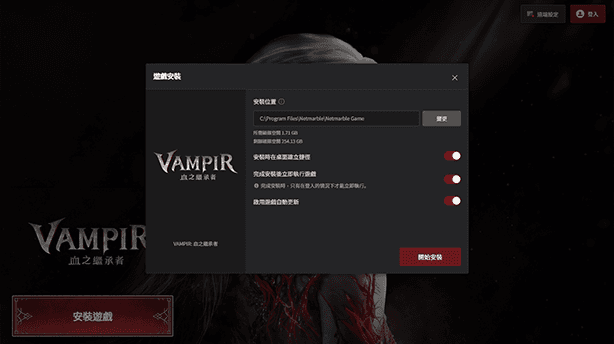
Run the EXE downloaded from the official PC page to install and launch the Netmarble Launcher; this is the launcher setup stage before installing VAMPIR itself. Once the Netmarble Launcher is running, check the installation options in the VAMPIR game installation pop-up before proceeding with the game installation. After reviewing those options, click "Start Installation" in the VAMPIR installation pop-up to begin installing the game through the launcher.
Use the Netmarble Launcher to log in or sign up, as directed by the official instructions. Netmarble explains that after installing VAMPIR through the launcher and logging in, you can create a game account and start playing. Once login is complete, click "Play" to enter the game. If you select "Keep me logged in," the official guide says closing and relaunching the launcher will automatically log you in and launch the game.
Adjust the display and find the in-game settings
After entering the PC version, use W, A, S, D for movement under the default settings. To switch between full screen and windowed mode, press Alt + Enter or F11. In windowed mode, drag the edges of the window to resize it, giving you a separate display adjustment from the graphics quality presets.
For graphics quality, the official FAQ directs you to Main Menu (≡), then "Settings," followed by the "Environment" tab at the bottom. The game offers 5 graphics quality presets, and Netmarble warns that settings above your device's specifications may cause performance degradation or abnormal shutdowns. For detailed play instructions, the PC installation page separately points to "Main Menu" > "Help" within the game. Follow the instructions for the feature you need: the FAQ's settings path concerns graphics, while the installation page's Help path concerns the detailed play guide.
Set up optional Remote Play with Netmarble Connect
Netmarble Connect lets a mobile device remotely play PC games available through the Netmarble Launcher, including the game running on your PC. Begin by setting up the launcher; after logging in, change its Remote usage setting to "ON" and select the Connect-linked account. Then download and install the Netmarble Connect app on your mobile device. This Remote Play setup uses the PC game running on your computer, with the mobile app providing remote access.
Make sure the Connect-linked account selected in the launcher matches the account used to log into Netmarble Connect. After completing the setup, open the app's "Remote" menu to access remote gameplay. When using the Remote service, a virtual pad appears for movement, whereas the PC version's default movement uses W, A, S, D. The official Connect page also lists remote launch, installation, and updates, alongside real-time character status notifications when the game is offline.
Check Remote connection and sleep settings
For a smooth Remote service experience, Netmarble recommends "Keep me logged in" when signing into the launcher, explicitly limiting this recommendation to private PCs. The guide also warns that a network disconnection caused by PC Sleep Mode can interrupt the Remote connection. Its listed sleep-setting path is PC > Display Settings > Power & Sleep > Sleep Mode, with the setting changed to "Never".
Remote supports mobile data, including 5G or LTE, as well as Wi-Fi, and the official page states a minimum broadband speed of 3 MBps. It recommends 10 MBps or more for this service; these speed figures concern Remote Play rather than the ordinary PC installation. Remote service quality can vary with the mobile carrier network and Wi-Fi environment. If you use mobile data for Remote Play, mobile carrier charges may apply, so include that condition when choosing your connection.
Identify the separate Epic Games Store listing
VAMPIR also has a separate Epic Games Store product page, where the base game is displayed as Free with a "Get" option. That listing identifies Netmarble Neo Inc as the developer and Netmarble Corp as the publisher, helping you identify the corresponding VAMPIR product. It also states that the game may include in-app purchases, so the base game's free listing does not describe every possible purchase. Check the store page for your account and region before claiming it, while using the Netmarble PC page for the launcher installation instructions described above.
Next Steps
Official download routes
Start your VAMPIR download with official PC, App Store, Google Play and Epic links, plus installation steps, PC requirements and Netmarble Connect setup.
Netmarble Launcher setup
Use the VAMPIR Netmarble launcher to install the PC game, check system requirements, sign in, and set up remote play through the Netmarble Connect app.
Need Help?
Check the official website and community for account support and current game announcements.
Official websiteOfficial DiscordRelated Guides
Beginner guide
Use this VAMPIR beginner guide to choose a class, follow quests, manage equipment and currencies, and build a practical dungeon and farming routine.
Pay-to-win considerations
Is VAMPIR pay to win? See what official growth claims, earnable Diamonds, store prices and PvP evidence mean before deciding to play free or spend money.