VAMPIR download: Official PC and Mobile Guide
Start your VAMPIR download with official PC, App Store, Google Play and Epic links, plus installation steps, PC requirements and Netmarble Connect setup.
Last reviewed:
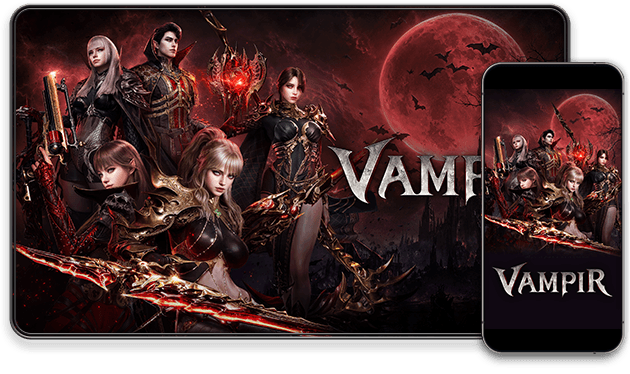
Official game media
VAMPIR imagery from the official game website and publisher resources.
Visit official websiteDownload VAMPIR through Netmarble's PC installation page or the App Store and Google Play links on its official homepage; an Epic Games Store listing is also available. VAMPIR has officially launched, and its English homepage directs players to download the game. For installation through the Netmarble Launcher on PC, prepare at least 30 GB of free storage before you begin.
Choose your VAMPIR download platform
For the Netmarble Launcher route, open the official PC installation guide and follow its launcher instructions. For mobile downloads, use the App Store or Google Play buttons on the official homepage. The linked Google Play listing identifies the app as Vampir by Netmarble and provides an Install action. Its Android package identifier is com.netmarble.thered, which helps distinguish that listing when checking the download destination.
The Epic Games Store listing presents the base game as Free and provides a Get action, while noting that in-app purchases may be included. Under required login accounts, that listing names Epic ID, Google, Apple, Facebook and Netmarble ID. Treat those account options as information for the Epic listing rather than confirmation that progress transfers between platforms. On mobile, check installation eligibility on the relevant store listing, since the download links do not guarantee availability for every device or region.
Install VAMPIR with the Netmarble Launcher
Begin by running the downloaded EXE file to install and open the Netmarble Launcher. The official PC guide asks you to prepare approximately 30 GB of free storage before the initial installation. The installation FAQ gives the more explicit instruction to have at least 30 GB free, so use that figure when planning available space. Make this storage check before starting installation rather than relying on the smaller Hard Disk entry in the requirements table.
Once the launcher is running, review the installation options in the VAMPIR game installation pop-up. Select Start Installation after checking those options. The official sequence then directs you to log in or sign up through the Netmarble Launcher. When login is complete, select Play to start VAMPIR; the launcher installation, game installation and login are separate parts of that sequence.
Check the Netmarble Launcher PC requirements
For this PC route, the minimum CPU options are Intel Core i5-10400 or AMD Ryzen 5 3600. The recommended CPU options are Intel Core i7-11700K or AMD Ryzen 7 5700X. Both the minimum and recommended columns list 16 GB RAM. The operating system entry in both columns is Windows10(64bit), under an operating system heading that specifies 64-bit.
The minimum graphics options are GeForce GTX 1060, Radeon RX 580 or Arc A580. The recommended graphics options are GeForce RTX 2060, Radeon RX 5700XT or Arc A750. The same official table lists DirectX Version 12 in both requirement columns. Use these as the Netmarble Launcher PC requirements when comparing your hardware, rather than assuming they reconcile the requirements of every storefront.
The Hard Disk row lists 20 GB in both the minimum and recommended columns. That table entry appears alongside an installation instruction requiring at least 30 GB of free storage. For a new installation, follow the free-space instruction instead of treating 20 GB as sufficient preparation. The table's 20 GB entry is also not a verified measurement of the game's final installed size.
Launch the game and adjust the PC display
The launcher offers a Keep me logged in option during sign-in. When selected, closing and relaunching the Netmarble Launcher automatically logs you in and launches the game. For the initial launch, the official sequence still directs you to complete login and select Play. The remote-play guidance separately recommends retained login for a smoother Remote service experience, with that recommendation explicitly limited to private PCs.
Once in the PC version, the default movement keys are W, A, S and D. Use Alt + Enter or F11 to switch between full-screen and windowed modes, and drag the window edges to resize it in windowed mode. To adjust graphics quality, open Main Menu, choose Settings and select the Environment tab. The FAQ lists five graphics presets and warns that settings above your device's capabilities may reduce performance or cause abnormal shutdowns.
Set up Netmarble Connect for Remote Play
Netmarble Connect lets a mobile device remotely play PC-version games available through the Netmarble Launcher. For VAMPIR, this means remotely playing the game running on your PC. Downloading Netmarble Connect is therefore a different choice from downloading the native VAMPIR mobile client through its store links. Choose the native game listing for a mobile client, or follow the Connect setup when your aim is to play the PC version remotely.
To configure Remote Play, first launch the Netmarble Launcher and set Remote to ON. Select a Connect-linked account in the launcher. Download and install the Netmarble Connect app on your mobile device, then sign in with the same Connect-linked account. After completing the account setup, open the Remote menu in Netmarble Connect to access remote gameplay.
Check the PC's sleep settings as part of preparing a remote session. The official guide warns that Remote can be interrupted if PC Sleep Mode disconnects the network. It gives the settings path as PC > Display Settings > Power & Sleep > Sleep Mode > Never. This warning concerns the connection to the PC running the game, so it matters when using Connect for remote access.
Check the Remote Play connection
Remote Play supports mobile data or Wi-Fi connections. The official guide states a minimum broadband speed of 3 MBps and recommends 10 MBps or more. Those figures use MBps exactly as written in the guide. Keep that unit in mind when comparing connection information, rather than reading the figures as Mbps.
Remote service quality can vary with your mobile carrier network and Wi-Fi environment. The connection figures therefore do not amount to a promise of identical remote-play quality on every network. The guide also warns that mobile carrier charges may apply when using Remote Play over mobile data. Consider your connection and data plan when choosing between mobile data and Wi-Fi for a remote session.
Review purchases, terms and in-game help
The publisher's mobile store description states that VAMPIR offers in-app purchases and that you can disable this feature through device settings. It also states that downloading the game constitutes agreement to its Terms of Service and Privacy Policy. Review those policies and purchase controls when preparing your download. After launching on PC, the installation guide points you to Main Menu > Help in the game for a detailed play guide.
Frequently Asked Questions
Where should I download VAMPIR for PC or mobile?
Use the official PC page for the Netmarble Launcher, or the official App Store and Google Play listings for the mobile game. The guide also links the separate Epic Games Store listing.
Is Netmarble Connect the same as the mobile game?
No. Netmarble Connect remotely accesses the PC version running on your computer. Use the native VAMPIR store listing when you want to install the mobile game itself.
Next Steps
PC installation guide
Start your VAMPIR PC download from the official page, install through Netmarble Launcher, check PC requirements, and set up optional Remote Play on mobile.
Netmarble Launcher setup
Use the VAMPIR Netmarble launcher to install the PC game, check system requirements, sign in, and set up remote play through the Netmarble Connect app.
Need Help?
Check the official website and community for account support and current game announcements.
Official websiteOfficial DiscordRelated Guides
Beginner guide
Use this VAMPIR beginner guide to choose a class, follow quests, manage equipment and currencies, and build a practical dungeon and farming routine.
Pay-to-win considerations
Is VAMPIR pay to win? See what official growth claims, earnable Diamonds, store prices and PvP evidence mean before deciding to play free or spend money.